




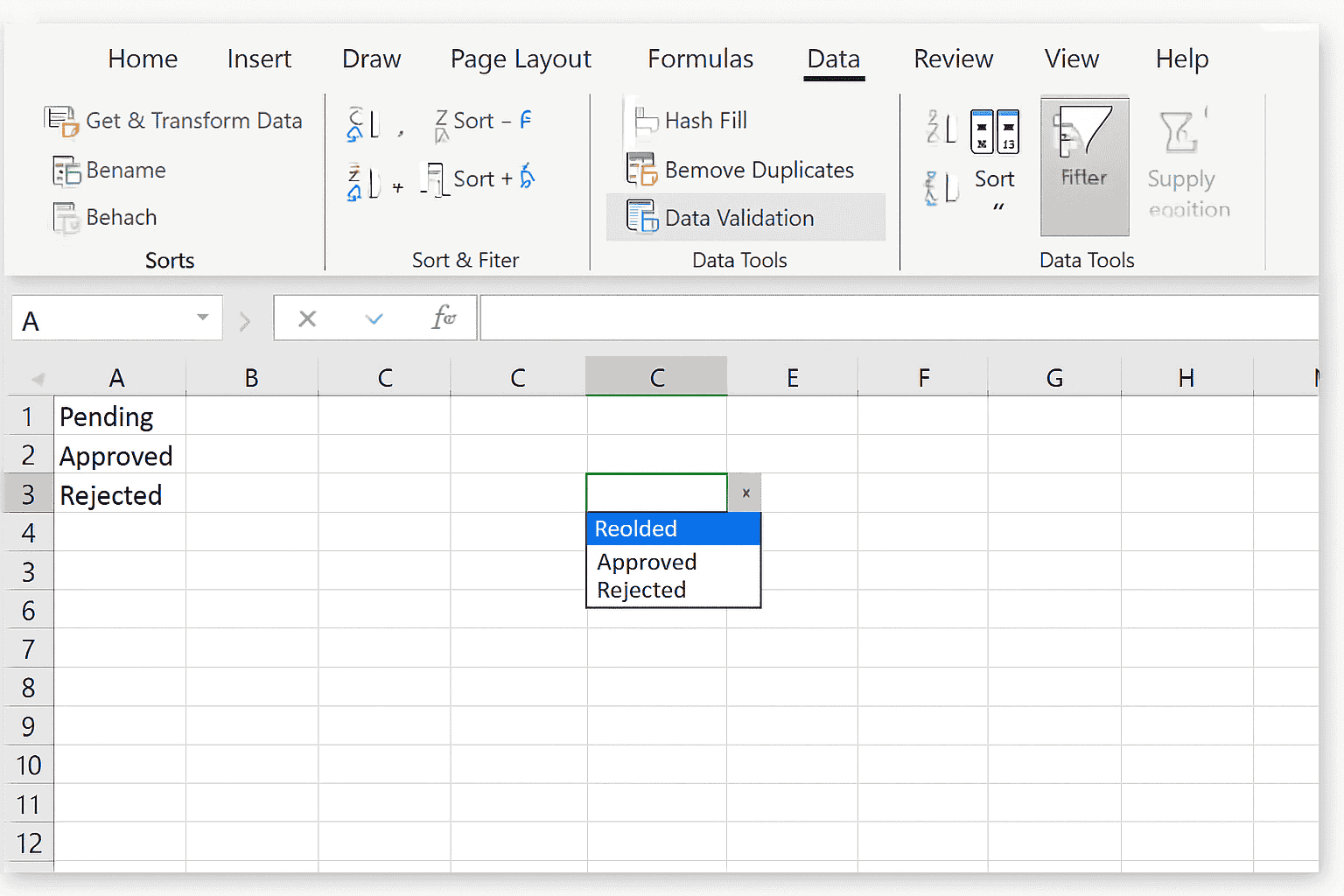
A drop-down list in Excel allows users to choose a value from predefined options instead of typing manually. This helps prevent errors, keeps data consistent, and makes spreadsheets easier to use, especially when shared with others.
Microsoft provides a built-in feature called Data Validation that lets you create a drop-down list in just a few clicks. No formulas or coding are required.
This guide explains the full setup process step by step, including what appears on screen.
Step 1: Prepare the list items in Excel
Before creating a drop-down list, you need the values that will appear inside it.
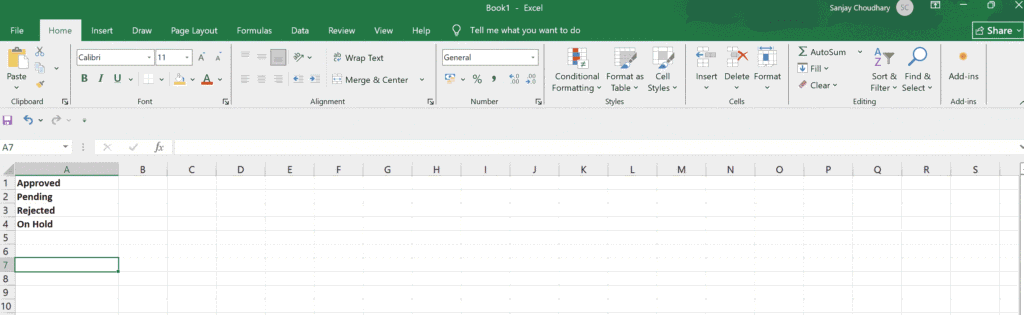
- Open Excel and create a new worksheet.
- In a single column, type the list values.
- Example:
- Cell A1: Pending
- Cell A2: Approved
- Cell A3: Rejected
- Example:
These values will act as the source for your drop-down list.
Step 2: Select the cell where the drop-down list will appear
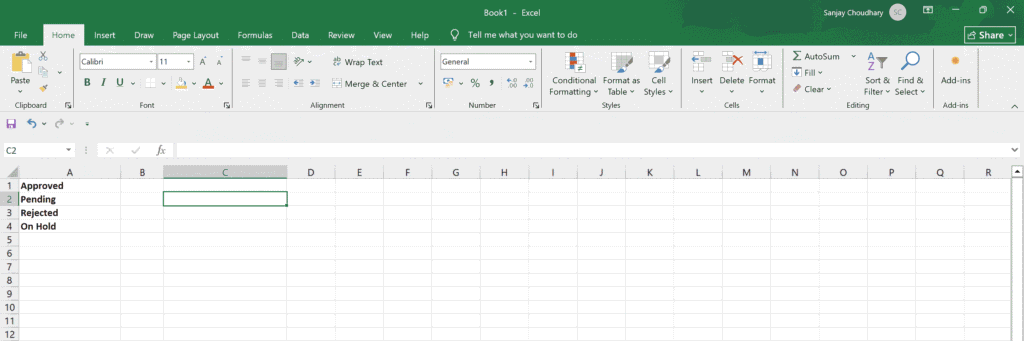
- Click on the cell where you want the drop-down list.
- Example: Cell C2
This is the cell users will click to select values.
Step 3: Open the Data Validation settings
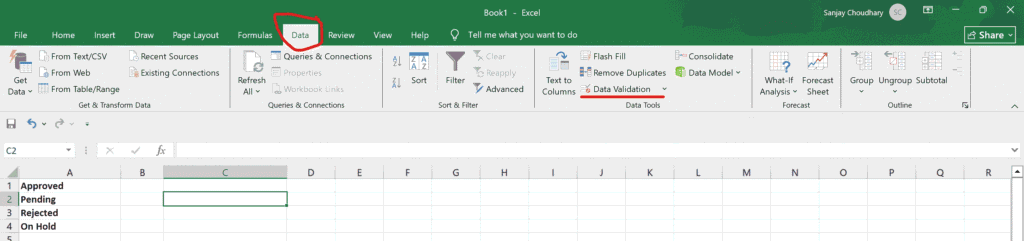
- Go to the top Excel ribbon.
- Click the Data tab.
- In the Data Tools group, click Data Validation.
- From the dropdown, select Data Validation again.
A settings window will open.
Screenshot tip:
Take a screenshot showing:
- The Data tab highlighted
- The Data Validation button visible
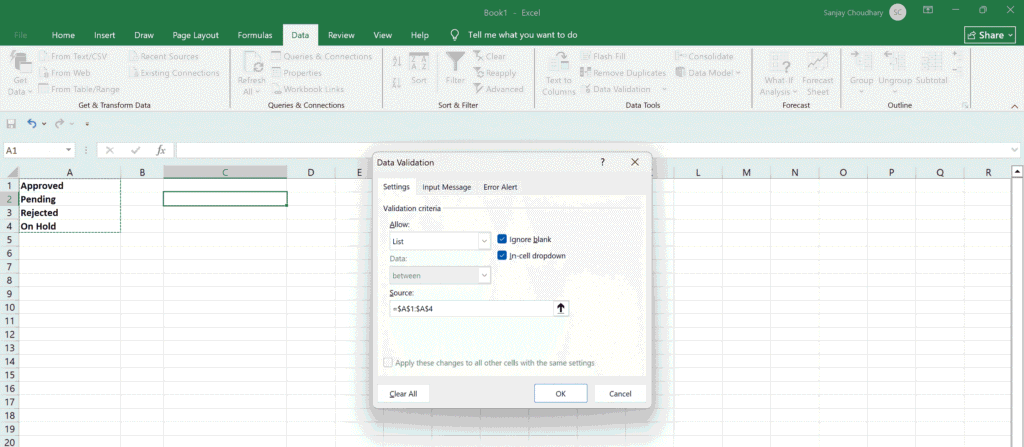
Step 4: Configure the drop-down list settings
In the Data Validation window:
- Under the Settings tab:
- Click the Allow dropdown
- Select List
- Click inside the Source box.
- Select the cells that contain your list values.
- Example: Select A1 to A3
- Make sure In-cell dropdown is checked.
- Click OK.
The drop-down list is now created.
- Allow set to List
- Source showing the selected range
Step 5: Test the drop-down list
- Click the cell where the drop-down list was created.
- Click the small arrow that appears.
- Select one of the values.
Excel will only allow values from the list.
Step 6: Add an input message (optional but useful)
Input messages guide users when they click the cell.
- Open Data Validation again.
- Go to the Input Message tab.
- Check Show input message when cell is selected.
- Enter:
- Title: Select status
- Message: Choose one option from the list
- Click OK.
Screenshot tip:
Capture the Input Message tab filled in.
Step 7: Set an error alert for invalid entries
This prevents users from typing values outside the drop-down list.
- Open Data Validation.
- Go to the Error Alert tab.
- Check Show error alert after invalid data is entered.
- Choose:
- Style: Stop
- Title: Invalid entry
- Message: Please select a value from the drop-down list
- Click OK.
Now Excel will block incorrect entries.
Screenshot tip:
Take a screenshot of the Error Alert tab and another of the error message popup.
Step 8: Create a dynamic drop-down list (advanced)
If you want the drop-down list to update automatically when new values are added:
- Select your list values.
- Go to Formulas → Define Name.
- Give it a name like StatusList.
- Use that name in the Data Validation Source field instead of cell references.
This method is ideal for large or frequently updated lists.
Why using a drop-down list improves Excel accuracy
A drop-down list reduces typing errors, enforces consistency, and makes spreadsheets easier to analyze. It is especially useful in finance, HR, reporting, inventory tracking, and dashboards.
Because all entries come from a fixed list, formulas, charts, and pivot tables work more reliably.
Read Also: Itaú Asset Management recommends 1% to 3% Bitcoin allocation for 2026

