




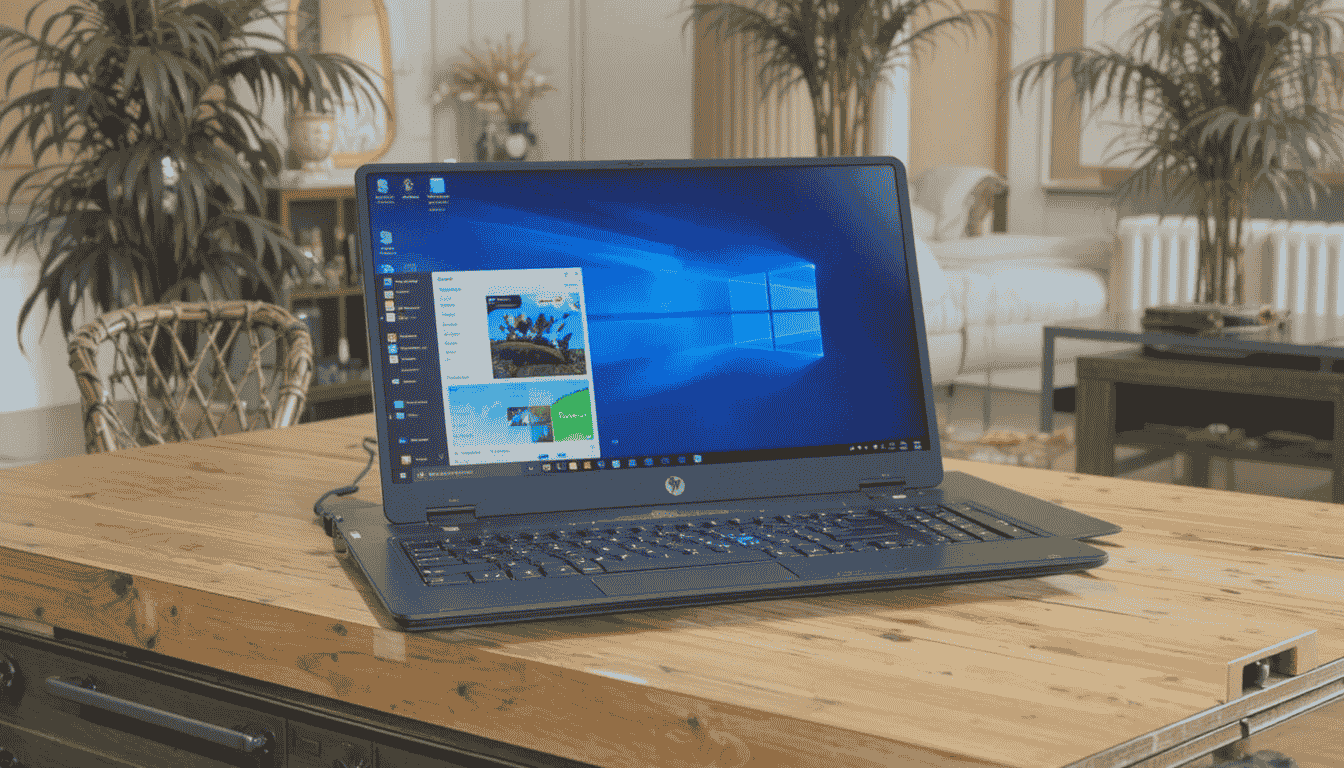
Many users search online to understand how do you take a screenshot on a HP laptop because HP models come with different key layouts, Windows shortcuts, and built-in tools. With newer Windows 10 and Windows 11 updates, the screenshot options have increased, which often confuses beginners. This guide explains every method clearly, why screenshots matter today, and which tool is right for your workflow.
Screenshots are important for students taking notes, office users saving error messages, creators capturing content, and professionals documenting tasks. The methods below work across HP Pavilion, HP 15s, HP Victus, HP Envy, HP EliteBook, and most HP touchscreen models.
Table of Contents
Main Screenshot Methods Explained
1. Print Screen Key (PrtSc / PrtScn)
This is the simplest way to capture the full laptop screen. Pressing the PrtSc key copies the entire display to the clipboard. You can paste it into Paint, Word, or any image editor. It is quick and ideal for users who need full-page captures without editing.
Strengths:
Fast and works on all HP laptops.
Limitations:
Does not auto-save. Some users may forget to paste the screenshot manually.
Ideal For:
Basic users, office tasks, simple documentation.
2. Windows + Shift + S (Snipping Tool / Snip & Sketch)
This method launches the modern Windows screenshot overlay. It lets you select a region, freeform shape, window, or full screen. The screenshot is auto-saved to the clipboard, and a preview pops up for editing with markers.
Strengths:
Precise selection, editing tools, automatic pop-up.
Limitations:
Needs Windows 10 or Windows 11.
Ideal For:
Students, teachers, designers, and people who want clean, cropped screenshots.
3. Windows + PrtSc (Auto-Save Screenshots Folder)
This captures the entire screen and automatically saves it to the Pictures > Screenshots folder. It is the most convenient method if you need screenshots saved directly without copying or pasting.
Strengths:
Instant auto-save, no apps needed.
Limitations:
Screen flashes, which some users dislike.
Ideal For:
Professionals and daily users who take multiple screenshots.
4. Alt + PrtSc (Active Window Only)
This captures only the active window instead of the whole screen. It avoids clutter and speeds up workflow.
Strengths:
Clean capture of only the main window.
Limitations:
Does not auto-save.
Ideal For:
Multitaskers and office users.
5. Snipping Tool (Full App)
HP laptops come with Windows’ classic Snipping Tool, which offers countdown timers, rectangle mode, window mode, and freeform shapes.
Strengths:
More control, delay timers.
Limitations:
Slower than keyboard shortcuts.
Ideal For:
Tutorial creators and students preparing notes.
6. HP Touchscreen Screenshot (Swipe / Button)
On touchscreen HP laptops, you can swipe three fingers down to take a screenshot if gestures are enabled.
Strengths:
Very fast on touchscreens.
Limitations:
Requires gesture settings to be enabled.
Ideal For:
Convertible HP x360 users and touchscreen laptop owners.
Screenshot Tools Comparison Table (Premium Style)
| Brand / Tool Name | Key Specs / Highlights | Price Range | Best For | Pros | Cons | Buy Link |
|---|---|---|---|---|---|---|
| Windows Snip & Sketch | Region/Window/Full capture, edit tools | Free | Students, office users | Accurate snipping, easy editing | Needs Windows 10/11 | Pre-installed |
| Snipping Tool | Delay timer, freeform, window snip | Free | Teachers, trainers | Timer useful for menus | Slightly slow | Pre-installed |
| Print Screen Key | Full screen copy | Free | Basic users | Very fast | No auto-save | Included |
| Windows + PrtSc | Auto-save screenshots | Free | Professionals | Saves instantly | Full screen only | Included |
| Lightshot (Third-Party Tool) | Quick capture + upload | Free | Content creators | Easy sharing | Not built-in | https://app.prntscr.com |
| Greenshot (Third-Party Tool) | Annotations, export options | Free | Bloggers, reviewers | Powerful editor | Windows only | https://getgreenshot.org |
Conclusion
Taking a screenshot on an HP laptop is simple once you know which method suits your purpose. Whether you prefer the basic Print Screen method or advanced tools like Windows Snip & Sketch, every option is accessible and free. If someone asks how do you take a screenshot on a HP laptop, the easiest answer is to pick the method that matches your workflow, offers quick access, and saves screenshots in the format you prefer.
Read Also: HP Laptop 15s du0xxx Review: Real-World Performance, Specs, and Buying Guide

