




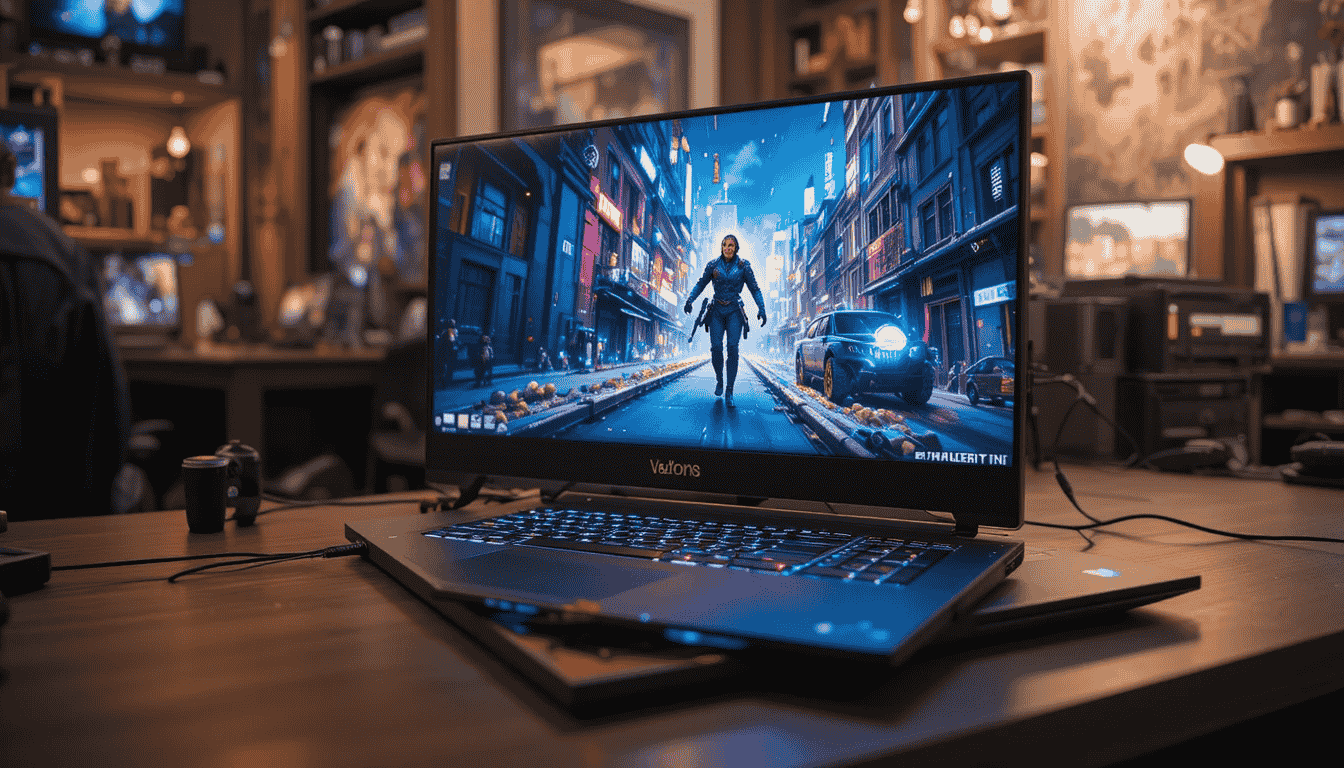
Virtual reality gaming is no longer a niche hobby. Modern headsets like the Meta Quest 3, Valve Index, and HTC Vive Pro 2 demand powerful hardware and stable system performance. Many gamers buy a strong laptop but still experience lag, jitter, low FPS, blurry visuals, or tracking issues. That is why understanding how to optimize gaming laptop for VR matters more than ever.
Most issues come from outdated drivers, wrong GPU settings, low bandwidth, thermal throttling, or VR-unfriendly background apps. The good news is that you can unlock a massive performance jump without upgrading to a new machine. A few right settings can make the difference between smooth immersion and motion sickness.
Table of Contents
Why Optimizing Matters for VR Gamers
VR is heavier than traditional PC gaming. Instead of rendering one screen, your laptop must drive two high-resolution displays at high refresh rates. Even a small performance dip feels worse in VR because you notice every frame drop instantly.
This article gives you practical, real-world steps, mini-reviews of popular VR-ready gaming laptops, pros/cons, and a premium comparison table so you can make smarter decisions. Whether you’re using a Meta Quest over Air Link, a tethered Valve Index, or SteamVR titles through Virtual Desktop, this guide will help you build a smooth setup.
How to Optimize Gaming Laptop for VR: Key Performance Steps
Below are the most important optimization methods—explained in simple, practical language.
1. Update GPU Drivers (NVIDIA / AMD)
VR performance heavily depends on your GPU. Updated drivers offer better frame pacing and headset compatibility. NVIDIA updates often include VRSS, DLSS, and latency improvements for SteamVR games.
2. Change Windows Graphics & Power Settings
Set your laptop to High Performance mode, disable battery-saving features, and switch GPU preference to your dedicated GPU. This prevents Windows from using the weaker integrated chip.
3. Disable Background Apps
Streaming apps, RGB tools, auto-updaters, Discord overlays, and Chrome tabs can eat CPU/GPU cycles. VR requires full system attention.
4. Reduce Thermal Throttling
Use a cooling pad, elevate your laptop, clean dust, and ensure proper airflow. VR loads the GPU continuously and generates more heat than regular gaming.
5. Optimize VR Headset Settings
Small changes like reducing render resolution, lowering field-of-view, and enabling upscaling features (DLSS, ASW, Motion Smoothing) dramatically boost FPS.
6. Use the Right Cable / WiFi Setup
For tethered VR: use a USB-C 3.2 Gen 2 cable or official link cable.
For wireless VR: ensure WiFi 6 or 6E and direct router line-of-sight.
VR-Ready Laptop Mini Reviews
Below are short reviews of three popular VR-capable laptops and how they perform when optimized.
ASUS ROG Strix G16
The ROG Strix G16 is known for incredible cooling and stable frame delivery. It handles VR workloads without drastic heat spikes, thanks to its larger vents and 165Hz display tuning.
Ideal for: VR gamers who want better thermal performance and long gaming sessions.
Limitations: Slightly heavier and bulkier than thin laptops.
Buy ASUS ROG Strix G16 – Click Here
Lenovo Legion 7
Legion laptops consistently push clean thermals and optimized firmware. With its powerful RTX GPU options, VR games like Half-Life: Alyx and Beat Saber run extremely smooth.
Ideal for: Users who want balanced performance, RGB control, and silent profiles.
Limitations: Battery life is weak in performance mode.
Buy Lenovo Legion 7 – Click Here
MSI Raider GE68
The Raider GE series delivers top-tier VR power with its strong wattage GPU and fast DDR5 memory. It is excellent for tethered VR experiences such as Valve Index or Vive Pro 2.
Ideal for: High-end VR gamers who want desktop-level performance.
Limitations: Premium price.
Buy MSI Raider GE68 – Click Here
Premium Comparison Table
| Brand / Product | Key Specs / Highlights | Price Range (₹ / $) | Best For | Pros | Cons | Buy Link |
|---|---|---|---|---|---|---|
| ASUS ROG Strix G16 | RTX 4060/4070, strong cooling, 165Hz panel | ₹1,40,000 – ₹1,90,000 / $1499–$1899 | Long VR sessions | Excellent thermals, stable FPS | Bulky | Buy now |
| Lenovo Legion 7 | High-wattage RTX, quiet fans, RGB polish | ₹1,80,000 – ₹2,40,000 / $1699–$2099 | Balanced VR setup | Consistent performance, good build | Low battery backup | Check price |
| MSI Raider GE68 | RTX 4080/4090 options, DDR5 RAM, fast SSD | ₹2,50,000 – ₹3,50,000 / $2199–$3499 | Enthusiasts & pros | True desktop-level VR power | Expensive | Official store |
Buying Guide: How to Choose a VR-Ready Gaming Laptop
Choosing a laptop for VR is different from choosing a laptop for normal gaming.
1. GPU Power Matters Most
VR rendering is heavy. Try for at least NVIDIA RTX 3060/4060 or above.
2. Thermals Decide Long-Term Performance
Good cooling reduces stutter and motion blur in VR.
3. CPU & RAM
A modern CPU like Intel 13th/14th gen or AMD Ryzen 7000+ offers smoother physics and AI processing. Prefer 16GB or 32GB RAM.
4. USB-C / DisplayPort Support
Some VR headsets need DisplayPort. Make sure the laptop has the correct port.
5. WiFi 6E / 7 for Wireless VR
If you want Meta Quest Air Link or Virtual Desktop, good wireless hardware is essential.
6. Upgrade Options
Upgradable SSD or RAM improves life span.
Conclusion
Optimizing your laptop for VR makes a huge difference in visual quality, comfort, and overall smoothness. Small performance tweaks deliver massive gains, especially in laptops where thermals and system load matter. If you’re confused about which laptop performs best, the ASUS ROG Strix G16 is great for budget VR gamers, the Lenovo Legion 7 fits all-rounder users, and the MSI Raider GE68 is perfect for high-end enthusiasts. With these steps, you now fully understand how to optimize gaming laptop for VR and get a smoother, more immersive experience.
Read Also: Letsfit Smart Watch Reviews – Affordable Fitness with Surprising Features

